Create Your First Commented Batch File
Write a real .bat script with REM comments using the built-in code editor.
Start Interactive Lesson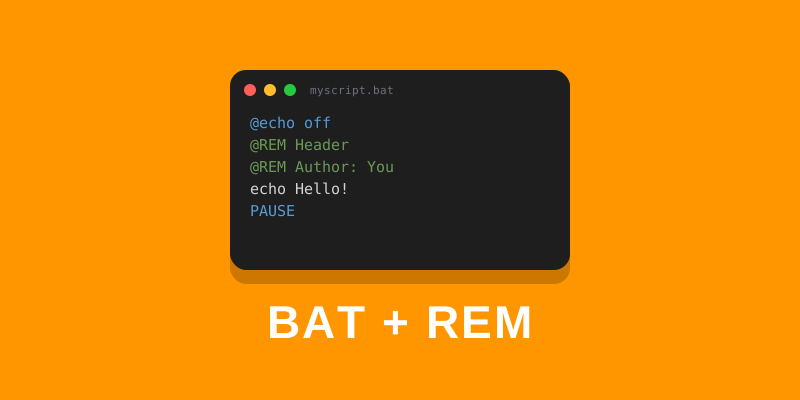
Now that you know how to open files in a text editor, let's write a real batch file with comments. Comments keep your scripts readable and maintainable. We'll use the editor below to write directly in your browser.
Try the command
Choose how to start your commented script!
Write Your Script in the Editor
Use the editor below to write a batch file with REM comments. Click ▶ Run to simulate the output, then ⬇ Download .bat to save and run it in a real terminal.
Notice: The
@REMlines do not appear in the output — they are invisible comments. Only theecholines produce output.
Why Comments Matter
As your scripts grow longer, comments become essential:
@echo off
@REM # ==============================
@REM # backup.bat  —  Daily Backup
@REM # Run every morning at 8:00 AM
@REM # ==============================

@REM # Step 1: Set source and destination
SET "SRC=demo-work"
SET "DST=demo-backup"
IF NOT EXIST "%SRC%" MKDIR "%SRC%"
echo Quarterly report>"%SRC%\report.txt"

@REM # Step 2: Run the copy
echo Backing up %SRC% to %DST%...
xcopy "%SRC%" "%DST%" /s /e /i /y /q

@REM # Step 3: Confirm
echo Done! Backup complete.
PAUSE
Good comments answer:
- What the script does (the header)
- Why a particular command is used
- What each section accomplishes
Knowledge Check
1 / 4What is the first line you should put in most batch files?
References
These documentation links provide authoritative details for the commands used in this article.
Up Next
Automate your daily tasks.