•Arnošt Havelka
Removing Files and Directories
Learn rm and rmdir to delete files and directories safely.
Start Interactive Lesson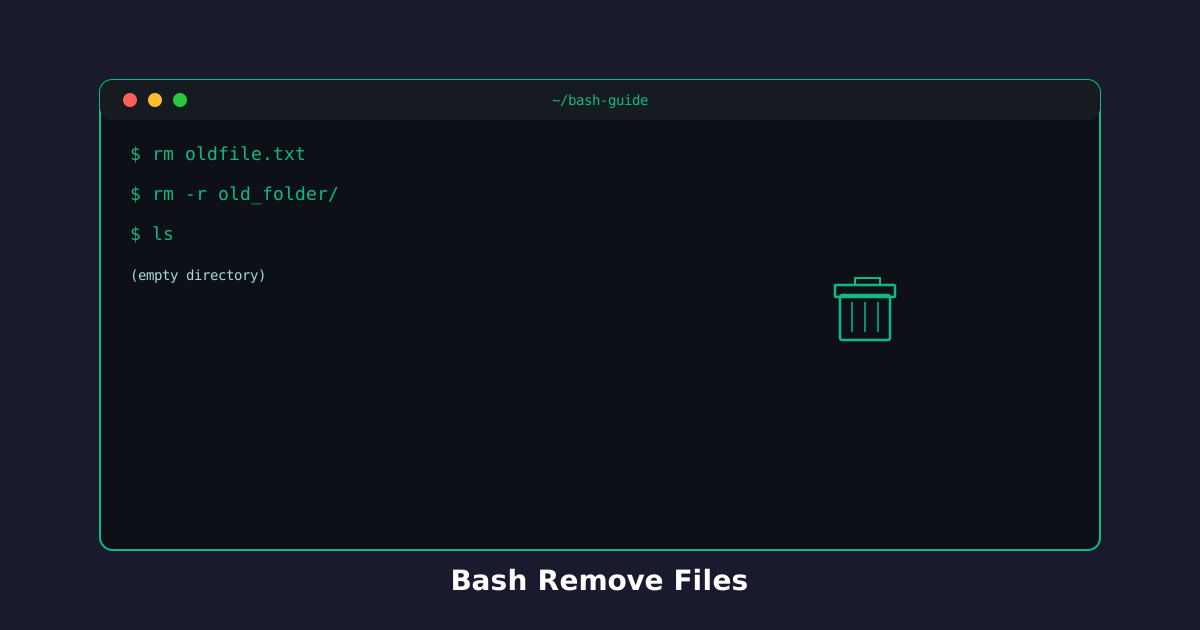
The rm command deletes files permanently. Use it carefully—there's no trash can in the terminal!
Remove a Single File
Use rm filename to delete a file.
Try the command
Delete a file!
Build the command
rm[arguments]
rm
Terminal
~$rm old.txt
Delete instantly:
Terminal
~$rm trash.txt
ls
Remove Multiple Files
Delete several files at once by listing them.
Try the command
Delete multiple files!
Build the command
rm[arguments]
rm
file1 file2 file3Multiple files - deletes all specified files.
Terminal
~$rm temp1.txt temp2.txt temp3.txt
Batch deletion:
Terminal
~$rm delete1.txt delete2.txt
ls
Remove Empty Directories: rmdir
The rmdir command removes empty directories. It refuses to delete non-empty ones.
Try the command
Delete an empty directory!
Build the command
rmdir[arguments]
rmdir
Terminal
~$rmdir empty_folder
Remove empty folders:
Terminal
~$rmdir EmptyFolder/
ls
Remove Directories with Contents: rm -r
Use rm -r to delete directories and all their contents. Be very careful with this!
Try the command
Delete a directory with files!
Build the command
rm[arguments]
rm
Terminal
~$rm -r old_project
Delete entire trees:
Terminal
~$rm -r Project
ls
Knowledge Check
1 / 3What does rm do?
References
These documentation links provide authoritative details for the commands used in this article.
Up Next
Practice: File Organization
Practice organizing files using mkdir and mv commands.